
| SpaceClaim Online Help |
|
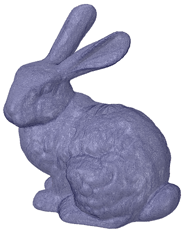
Printing the model above could take a long time and a lot of material, if the entire volume is filled.
Infill lets you shell the interior of a model and add an internal support structure. This provides strength while reduce material costs and printing time.
The tool has several options for controlling the size, shape and percentage of the volume filled.
 tool
toolSet the Thicken direction to Inside
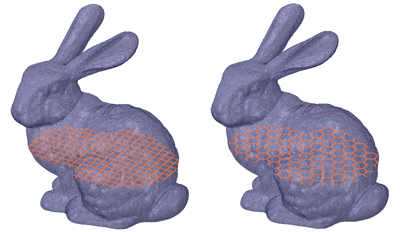
Mesh after it is shelled Mesh to shell % - Percentage of the shell volume filled by material will change Length and changing Length will change Fill. Changing the Thickness will also change the Fill percentage. - Use the dropdown slider to drag the preview along its normal direction. Use the Reset button to go back to the previous location is added and a new mesh body is shown in the Structure TreeThe images below show preview for Square and Hex Infill shapes.
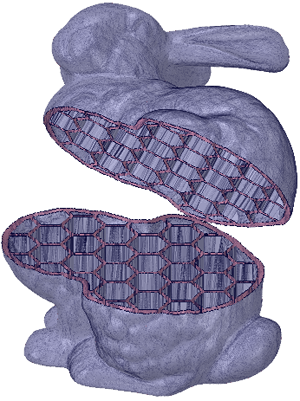
The image below shows the model shelled with a Hex infill. The body was split and moved to expose the Infill.
You can also use Custom shapes for the Infill. In the example below, the "X" shape will be used as a Custom Infill.
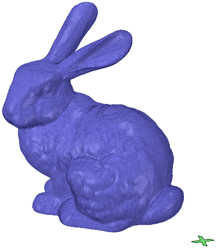
toolSet the Thicken direction to Inside
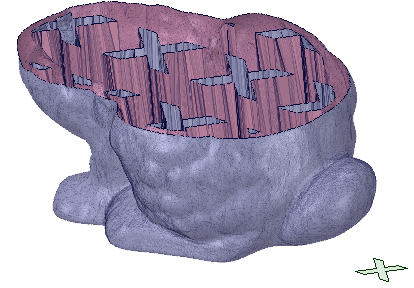
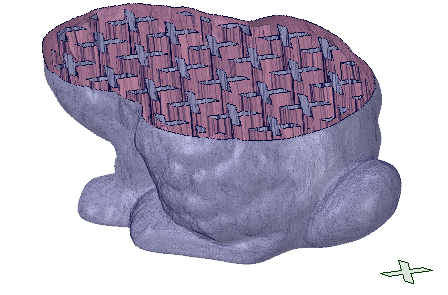
Mesh after it is shelled Mesh to shell to Fit - Enter a length to scale the custom shape. Allows you to increase/decrease the size of the shape as needed.: spaces - Fills the space between the shapes in the pattern and leaves a void in the interior of the shape. is added and a new mesh body is shown in the Structure TreeThe images below show some examples.
| Shape scaled to fit a larger dimension and a large space between shapes |
|
| Shape NOT scaled to fit and a small space between shapes |
|
© Copyright 2015 SpaceClaim Corporation. All rights reserved.